 Gleeo Time Tracker
Sign in and subscribe
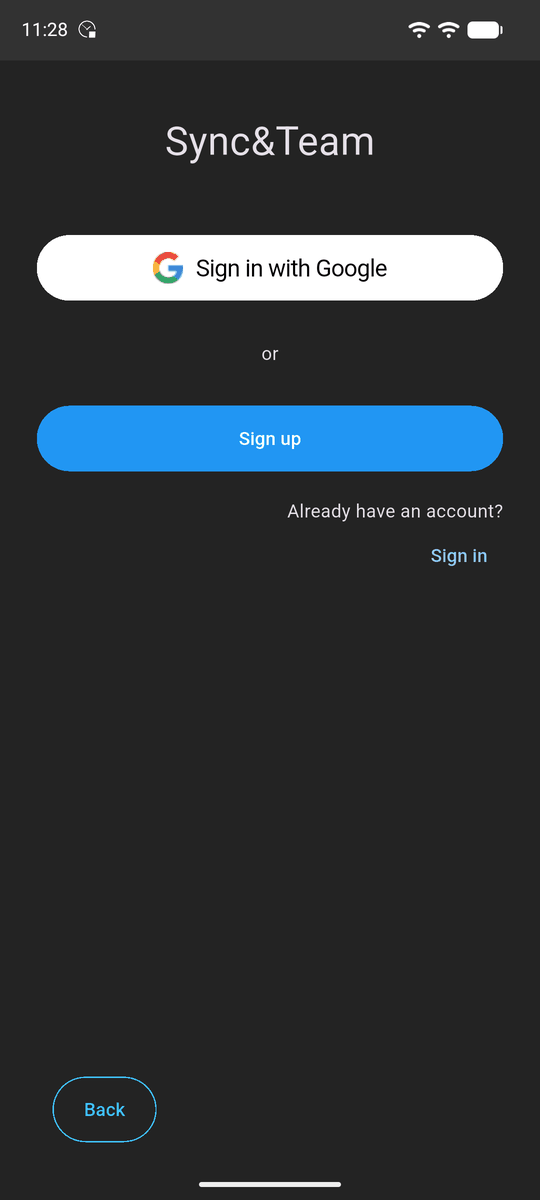
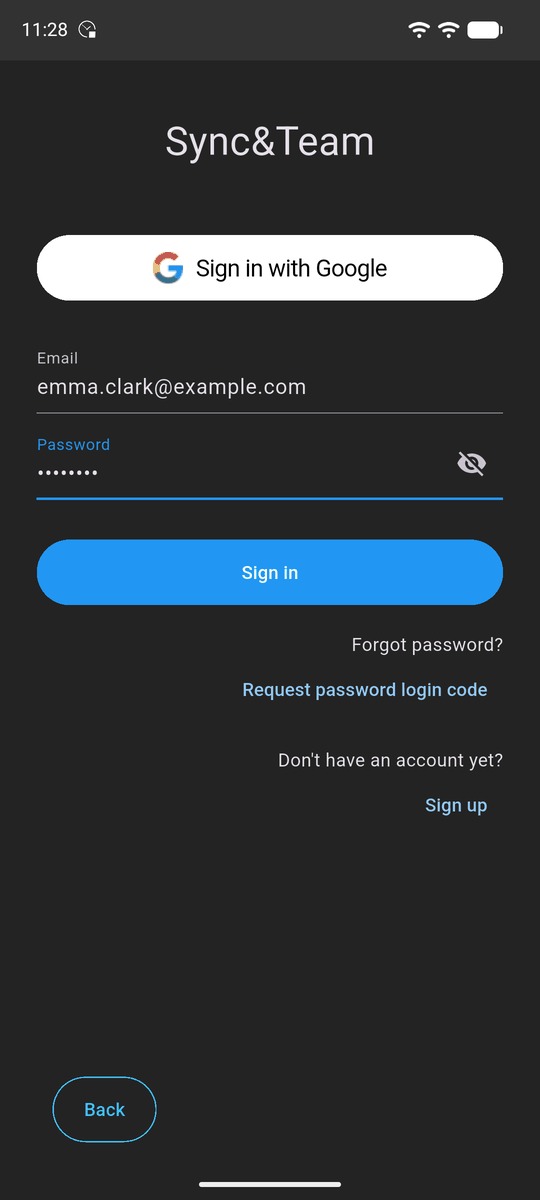
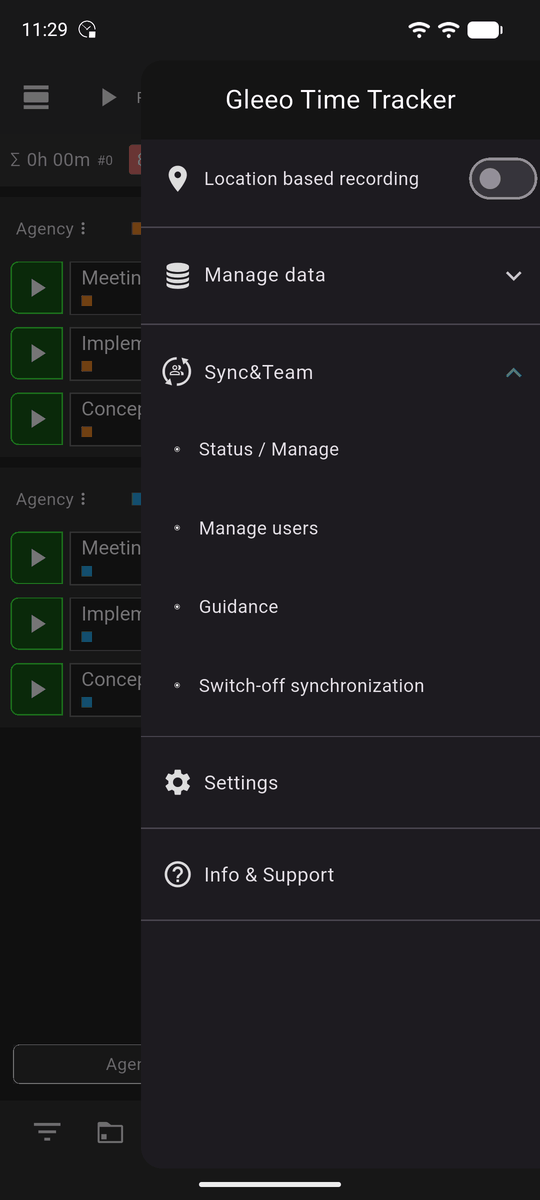
You take out Sync&Team in the app, in the main menu under Sync&Team. After a short introduction you sign in: with Sign in with Google, on the iPhone also Sign in with Apple, or with an account of your own made of email and password. Sign up creates it, Sign in uses an existing one. The same sign-in later works in the web application and on further devices.
 Enlarge image
 Enlarge image
If the account has no subscription yet, you then choose how many users it covers and how often it is billed. Payment runs through Google Play or the App Store; the first 30 days are free, and you can cancel at any time.
Anyone added to an existing subscription (step 5) takes out nothing: after signing in with the email address that was added, they go straight on.
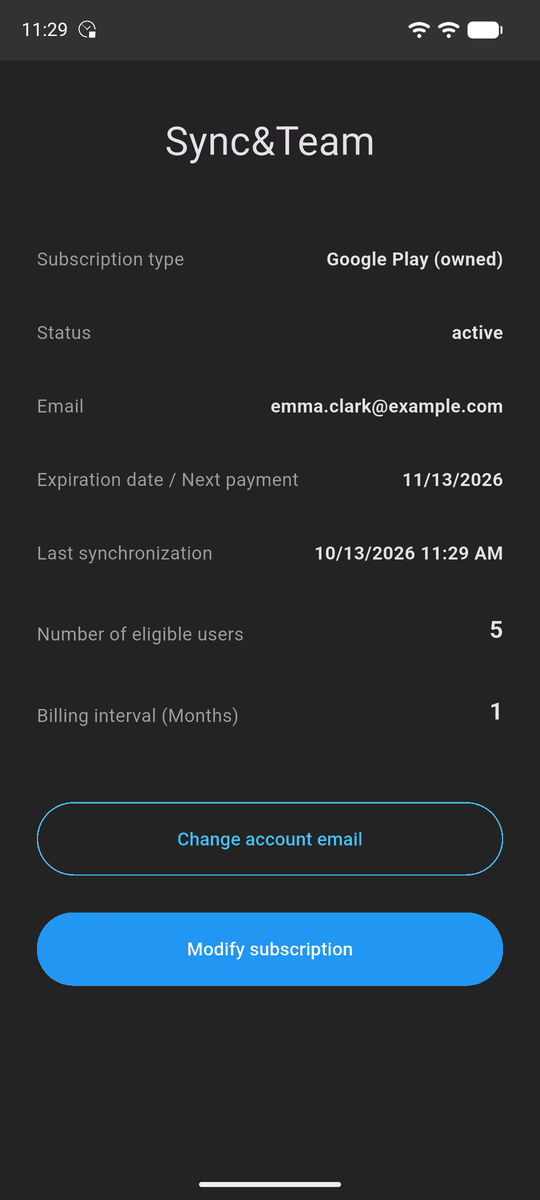
Afterwards the Sync&Team menu item has sub-items. Status / Manage shows the subscription, its expiry date, the last synchronisation and the number of eligible users. Modify subscription adjusts it when staff join or leave; Change account email changes the account's address.
 Enlarge image
 Enlarge image
First synchronisation from the app
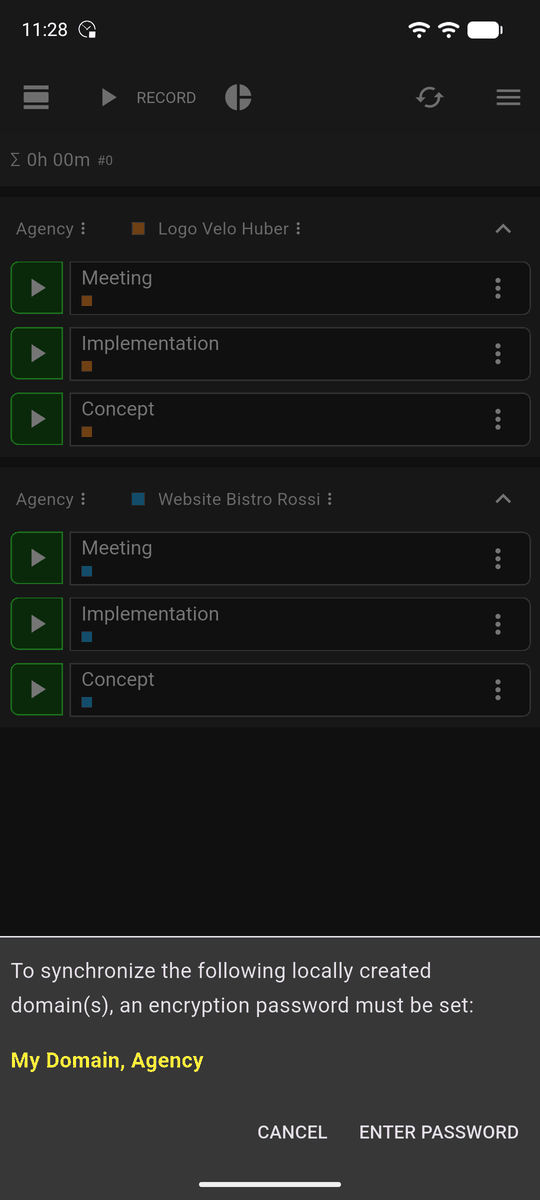
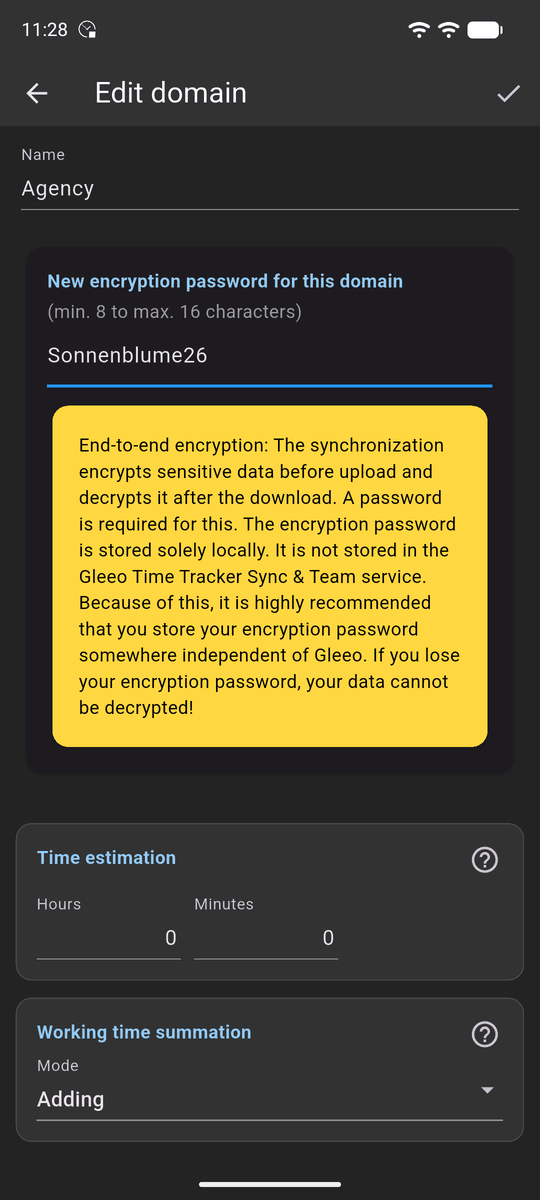
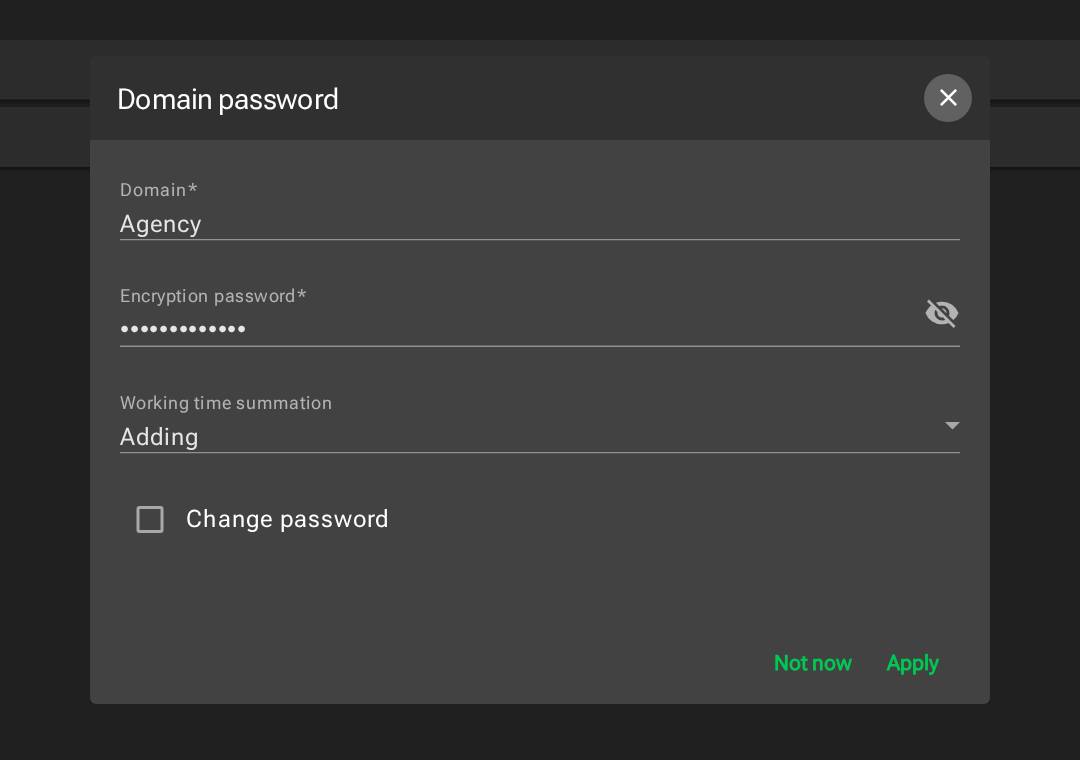
Before the first upload the app asks for an encryption password for each domain. The names of projects and tasks, the detail texts and the locations are encrypted on the device before they are uploaded; only the domain name stays readable. The password stays on the device and never reaches Gleeo. It has nothing to do with the account password.
Write it down somewhere safe. If it is lost, the data can no longer be decrypted, not even by us.
 Enlarge image
 Enlarge image
Once every domain has its password, the app uploads the data and keeps it in sync from then on. On another device, sign in with the same account and enter the same passwords.
Start the web application
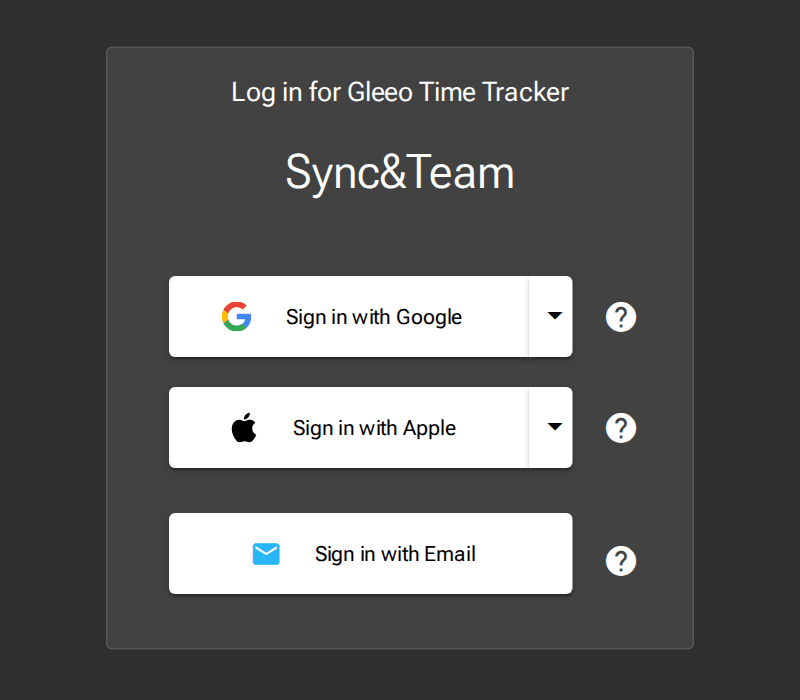
Open the web application in your browser at gleeo.com/gwa. Sign in the same way as in the app: with Google, Apple or email.
 Enlarge image
The first time, the web application asks for the encryption password of each domain, the same one as in the app. The browser stores it encrypted; another browser, or the same one after its data has been cleared, asks again. Without the password, encrypted appears instead of the names.
 Enlarge image
The menu at the top left leads to the views: Recording starts and stops recordings as in the app, Elements shows the totals per domain, project and task, Project time the individual entries (step 6) and Statistics the estimated against the tracked time. Under Extras you find the users of the subscription, the CSV import and the settings.
Share domains and grant permissions
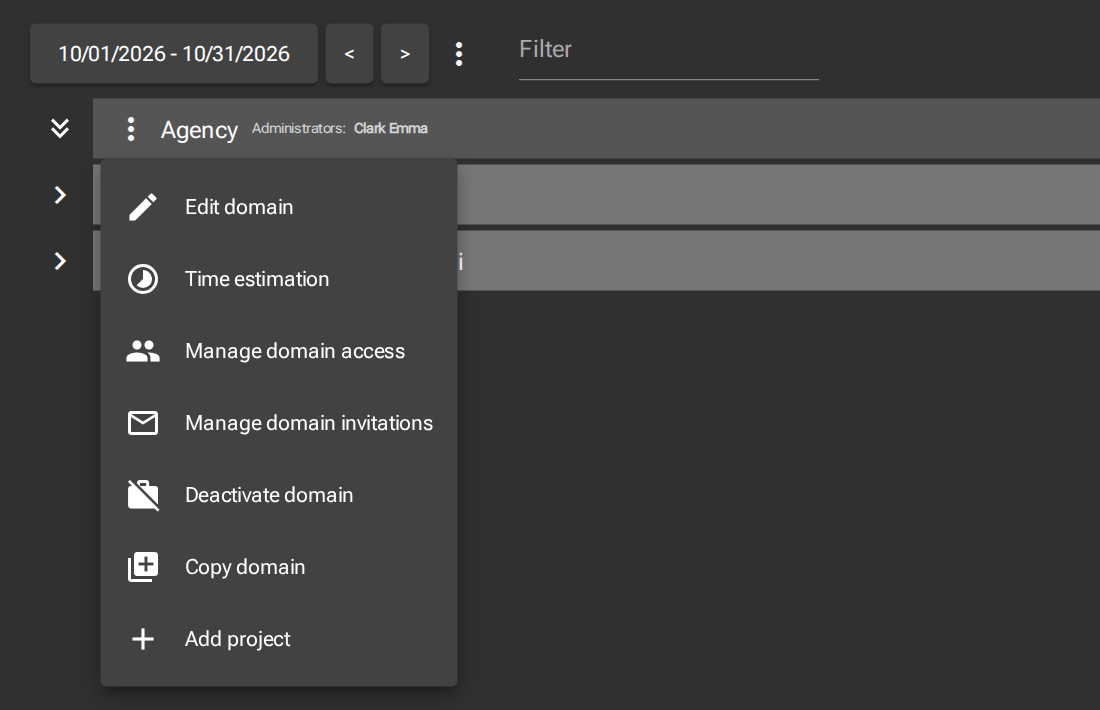
You always share a whole domain with all its projects and tasks. In the Elements view, the three-dot menu next to the domain name opens its management: Manage domain invitations for new members, Manage domain access for existing ones.
 Enlarge image
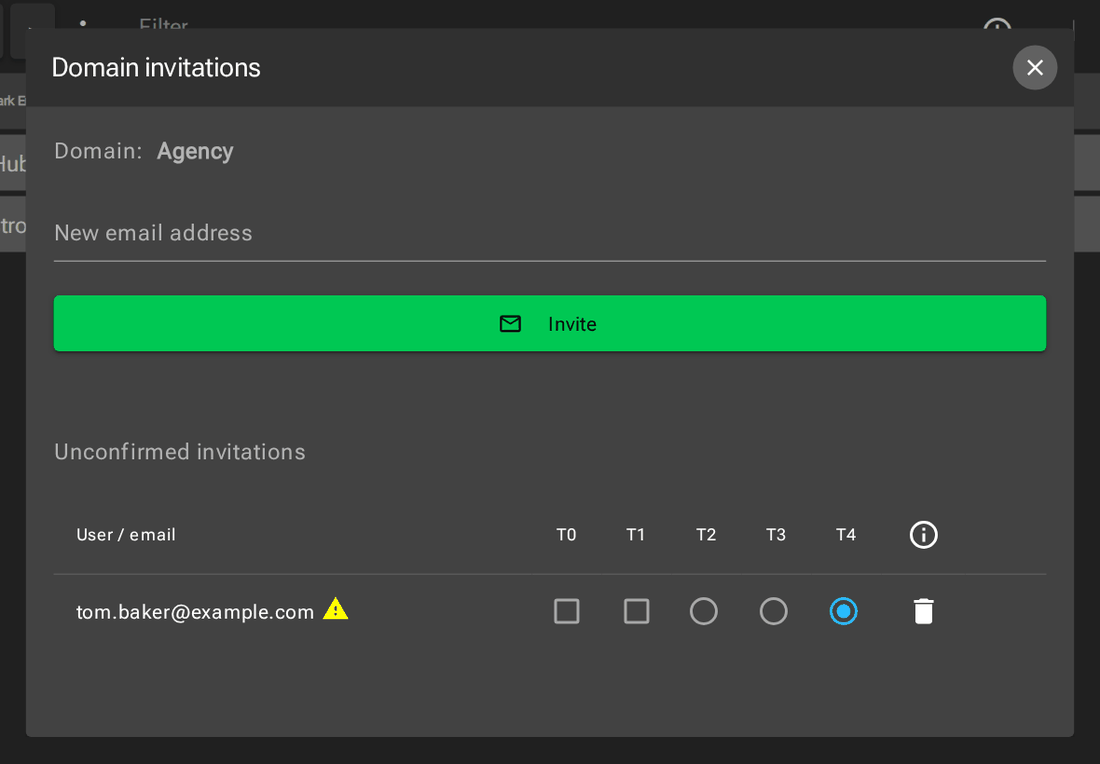
Under Manage domain invitations, enter the email address the person uses for Sync&Team and click Invite. They receive an email with a link to the web application and accept the invitation there. Until then they are listed under Unconfirmed invitations; the warning sign means there is no Gleeo account for that address yet. If there is one, you can accept the invitation on their behalf.
 Enlarge image
Also give the new member the domain's encryption password, preferably in person and not in the same email. Without it they see the domain but none of the names.
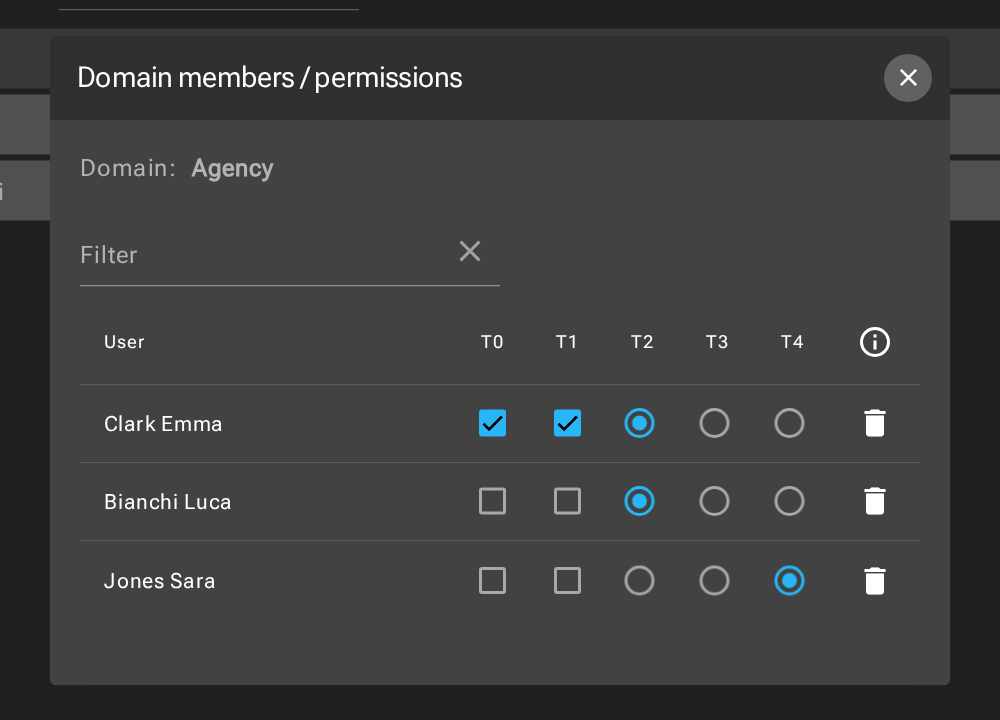
Under Manage domain access you decide what each member may do; a change applies immediately. T0 (Owner) invites members, grants permissions, changes the password and manages time estimates. T1 (Project Administrator) creates, edits and deletes projects and tasks. T2 to T4 cover the time entries: T2 edits the entries of all members, T3 sees them, T4 only sees their own.
T0 and T1 are tick boxes, T2 to T4 a single choice. A project administrator therefore also needs T2 to edit other people's entries. The ⓘ icon explains the levels, the bin removes a member from the domain.
 Enlarge image
Add and remove members
How many people use Sync&Team through a subscription via Google Play or the App Store is set in the app under Status / Manage, Modify subscription.
With a subscription on invoice: here the number of places cannot be changed in the app. You choose the number of places when you sign up and when you order; to change it afterwards, write to info@gleeo.com.
Who takes the places is decided in the web application under Extras, User. You do not need a computer for this: with a subscription for several users, the app shows the item Manage users under Sync&Team. It opens exactly this page of the web application in the phone's browser; if it asks you to sign in, use the same account as in the app.
The plus in a free row (unused) adds an email address. The person receives an email and then signs in with that address in the app or the web application; they need no subscription of their own. If they have no password yet, they choose Sign up with that address, in the app or in the web application. With Google or Apple they need none. Admin gives them access to this page.
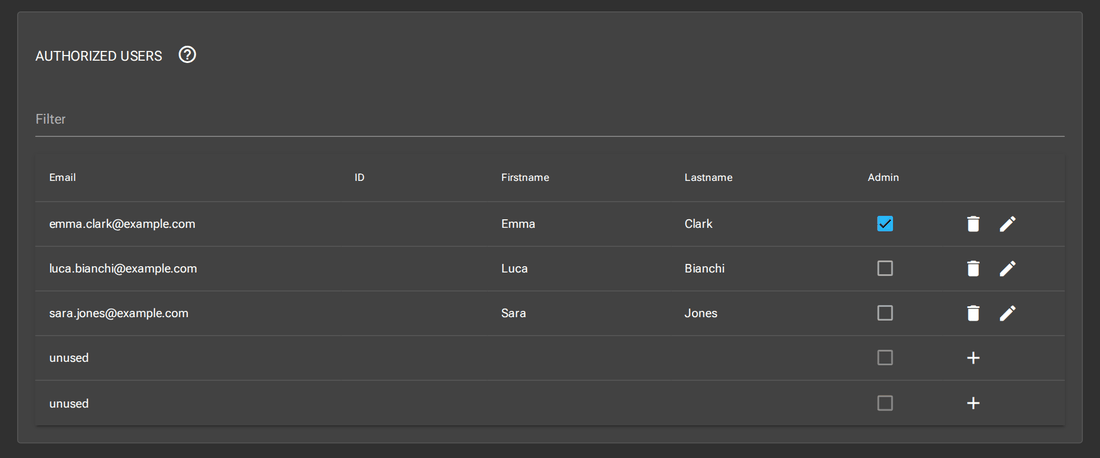 Enlarge image
The bin removes a person from the subscription and frees their place. Their time entries in the shared domains are kept: they pass to a former member record listed separately below the users. If the person returns, you hand the data back to their account from there. They lose access to the domains.
Filter and export
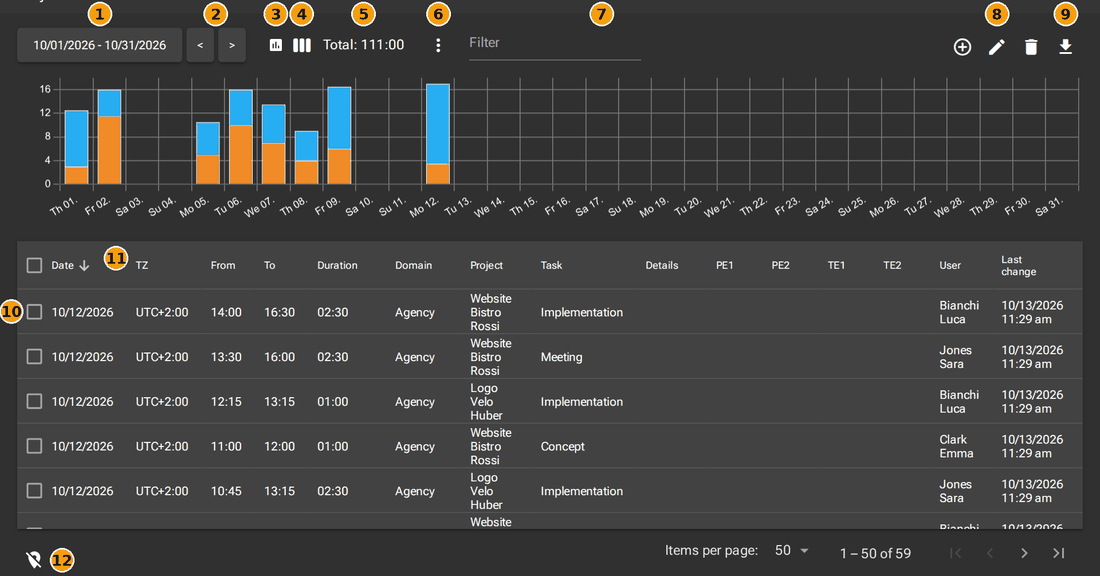
The Project time view shows the individual entries of all members, as far as your permission reaches (step 4), with a chart per day above them.
 Enlarge image
- Choose the period.
- One period back or forward.
- Show or hide the chart.
- Split the bars by project or by task.
- Total of the entries shown.
- More options: show duplicates only.
- Filter.
- Add, edit or delete an entry.
- Export.
- Select an entry; the box in the table header selects all.
- Sort by a column.
- Show or hide the map of recorded locations.
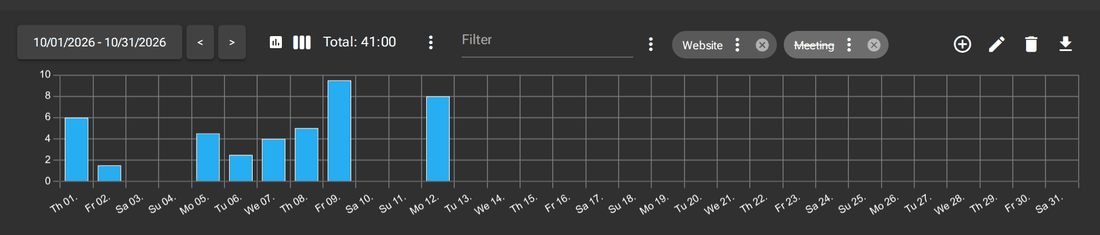
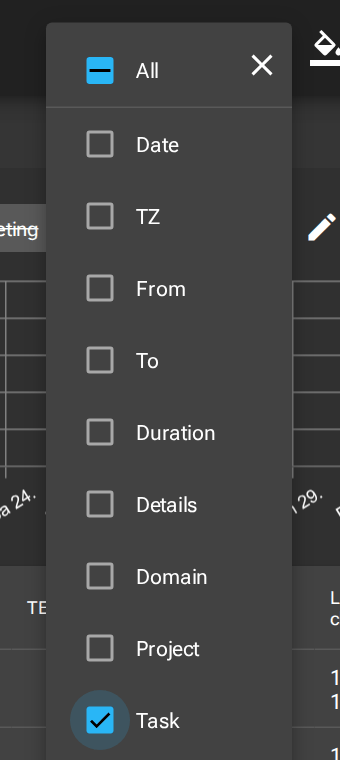
Text in the filter narrows the list at once. The arrow next to it turns it into a fixed filter; several fixed filters apply together, and the three dots next to the filter field save and load them. Clicking the text inverts a filter: it then shows the entries that do not contain the text. For this, choose the column with the three dots on the filter, for example Task.
 Enlarge image
 Enlarge image
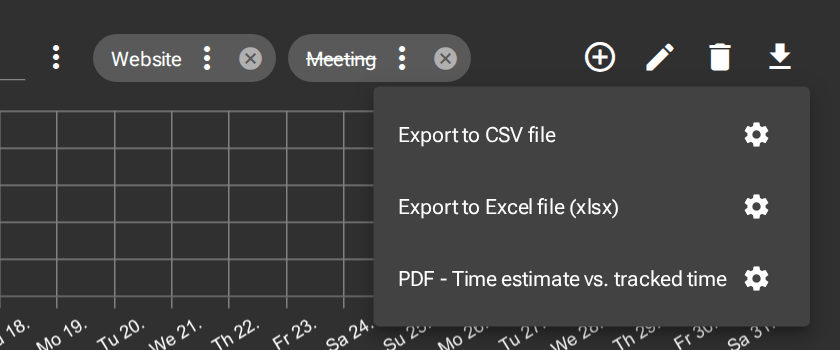
Export writes the selected entries, as a CSV or Excel file; the gear next to the format opens its settings. PDF - Time estimate vs. tracked time creates a report on the estimated times.
 Enlarge image
Evaluate time estimates and completion rate
For every domain, project and task you can record how much time the work is expected to take. In the Elements view, the three-dot menu opens Time estimation; estimates are managed by the owner of the domain (T0). Each level has its own estimate. If a project or domain has none, the sum of its tasks' estimates applies.
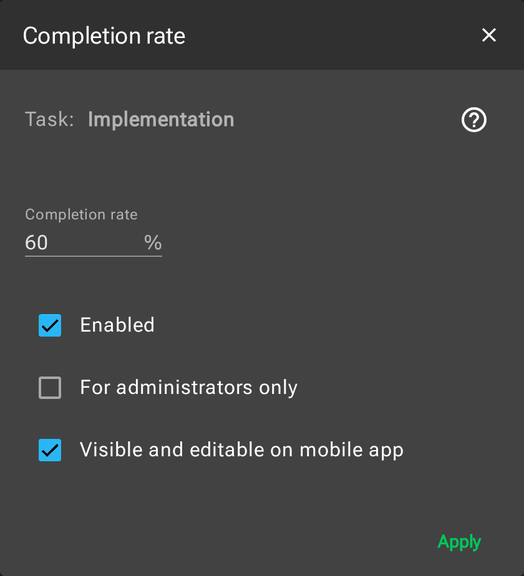
For a task, the same menu has Completion rate just below: your assessment in percent of how far the work has progressed. A project administrator (T1) turns it on with Enabled and enters the value. For administrators only shows it only to the administrators of the domain, Visible and editable on mobile app also in the app: there it appears as a blue percentage badge on the task, and a tap on it changes the value.
 Enlarge image
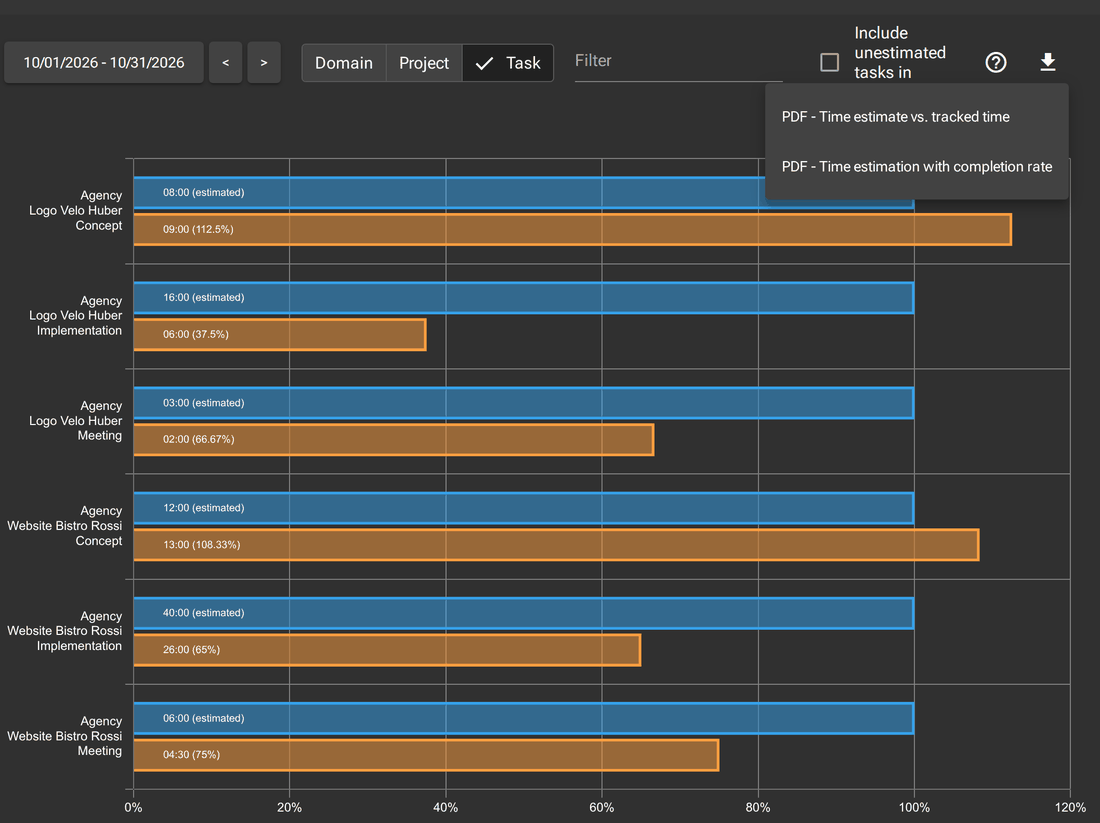
The Statistics view compares the estimated with the tracked time for the selected period, per domain, project or task. Only elements with an estimate appear. With Include unestimated tasks in usage, the time of tasks without their own estimate also counts for projects and domains.
 Enlarge image
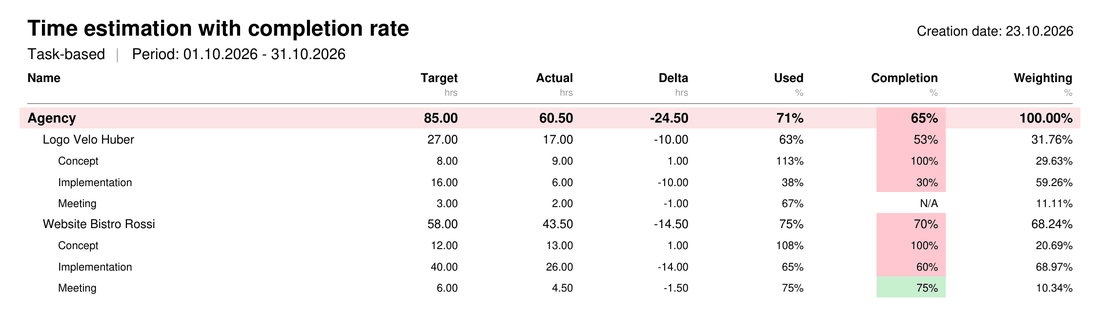
The download button on the right creates two PDF reports. PDF - Time estimate vs. tracked time contains the chart and below it target, actual and percentage per domain, project and task. PDF - Time estimation with completion rate is a post-calculation: per row target, actual, delta in hours, used (actual relative to target), completion and weighting (share of the estimate of the level above). A green completion is at least as high as the time used: the estimate is on track. Red means more time has been used than work completed.
 Enlarge image
For projects and domains, the report calculates the completion from their tasks, weighted by their estimates: Task A (10 h, 80 %) and Task B (30 h, 20 %) give (80 × 10 + 20 × 30) / (10 + 30) = 35 %. Only tasks with an estimate and an enabled completion rate count. Tasks with an estimate but no completion rate are listed by the web application before the report is created; in the report they show N/A. If no task has a completion rate, no report is created.
More questions on this topic: FAQ on Sync&Team